Nochmals neu getestet ohne Anpassungen... Jetzt scheint es zu funktionieren. Sehr rätselhaft.
Ich beobachte das mal weiter und baue nach und nach meine Anpassungen ein. 

Nochmals neu getestet ohne Anpassungen... Jetzt scheint es zu funktionieren. Sehr rätselhaft.
Ich beobachte das mal weiter und baue nach und nach meine Anpassungen ein.

Nochmals neu getestet ohne Anpassungen... Jetzt scheint es zu funktionieren. Sehr rätselhaft.
Ich beobachte das mal weiter und baue nach und nach meine Anpassungen ein.
Wollte grade sagen dass mir nichts dazu einfällt, ausser halt anderes CSS oder JS das v.a. am Browserfenster (#browser) was ändert, aber hört sich jetzt ja erstmal gut an. 
Sag Bescheid wenn was ist - und wenn nichts mehr schiefläuft. 
vielleicht testen noch ein paar andere User
Ich habe das Script aus #116 in einem neuen Profil auf Linux getestet. Läuft ohne Probleme! Auch mit sämtlichen firefoxeigenen Sitebars.
Die Bedienung ist für mich etwas 'gewöhnungsbedürftig' aber das ist ja wohl so gewollt.
#116 Läuft hier bei mir auch soweit ohne Probleme.
Einzig wenn ich die Leiste komplett "aus" habe,
den FF neu starte ist eine Leise, ohne Funktion zu sehen.
Bis aber der Sache nicht weiter auf den Grund gegangen,
da ich sie bisher nicht nutze.
Wenn gewünscht, unterziehe ich das Skript mal einer genaueren Überprüfung.

wenn ich die Leiste komplett "aus" habe,
den FF neu starte ist eine Leise, ohne Funktion zu sehen
Kann ein Linuxuser nicht bestätigen.
Entwarnung meinerseits! Hab hier beim Testen einen Bock geschossen... Dann kann es natürlich nicht funktionieren. Sorry für die Verwirrung... 
Danke für's Testen an Alle!

Die Bedienung ist für mich etwas 'gewöhnungsbedürftig' aber das ist ja wohl so gewollt.
Es gibt ja den extra Button für die Position; die Idee ist, dass man sich den in jede beliebige Toolbar (inkl. dieser neuen Toolbar!) oder ins Overflowmenü schieben kann, wenn man in eher selten benutzt.
S. auch Bug unten, und etwas extra Code.
Einzig wenn ich die Leiste komplett "aus" habe,
den FF neu starte ist eine Leise, ohne Funktion zu sehen.
...
Wenn gewünscht, unterziehe ich das Skript mal einer genaueren Überprüfung.
Kann ich nicht ganz nachvollziehen: was ist komplett aus ? 
Und unterziehe soviel du Lust hast, jede Verbesserung und jeder Fehlerbericht ist willkommen!
----------
A propos, ein Bug: keiner der beiden Buttons für die Leiste darf komplett aus den Symbolleisten oder dem Overflowmenü entfernt werden, sonst zerschiesst es den Code nach Neustart. 
Das lässt sich korrigieren wenn man im Anpassenfenster den betroffenen Button wieder in eine Leiste zieht und neu startet, nervt aber.
Ein Problem mit dem ich schon 1000x gekämpft habe; scheint dass alle eigenen Buttons (mit wie von mir benutzten Buttoncodes), die nur im Anpassenbereich (#customization-palette) abgelegt sind, mit Verzögerung (lazy) geladen werden, und dann deren Referenz in Funktionen etc. gebrochen wird => Errors, und der Rest vom Script wird stillgelegt. 
Vorschläge willkommen.
-----------
Extra Code, nur für geneigte Tester; würde mich interessieren wie das in Windows und Linux aussieht und funktioniert.
Kontextmenüs sind ja teils sehr OS abhängig.
Das wäre dann ein zusätzlicher Eintrag ins Kontextmenü der Toolbars, um die Position damit zu ändern.
      // Context menu menuitem, unten einfügen ca. Zeile 385
      let refItemSW = document.createXULElement("menuitem");
    	refItemSW.setAttribute('id', 'NewToolbar_position_Con');
    	refItemSW.setAttribute('label', 'Toolbar Position');

    	let refItemSW_A = document.getElementById('toolbar-context-menu');

    	let refItemSW_S = document.querySelector('.viewCustomizeToolbar');
    	refItemSW_A.insertBefore(refItemSW, refItemSW_S);

      let menuseparator_sw = document.createXULElement("menuseparator");
    	menuseparator_sw.setAttribute('id', 'sw_sep');
    	refItemSW_A.insertBefore(menuseparator_sw, refItemSW.nextSibling);

      NewToolbar_position_Con.addEventListener('click', event => {
         if (event.button === 0 ) {
           if (!new_tb_uno_sw) {
             poser();
           }
           else {
             poser_uno();
           };
         }
}); 
Das wäre dann ein zusätzlicher Eintrag ins Kontextmenü der Toolbars, um die Position damit zu ändern.
Das funktioniert mit Win11 perfekt. Das Sahnehäuptchen wäre natürlich, wenn im Kontextmenü dann auch angezeigt wird (rechts/links/unten) wo sich die Toolbar befindet. Im Button kann man das zwar auch erkennen, aber wenn schon, dann schon richtig.
Linux aussieht


Das funktioniert mit Win11 perfekt. Das Sahnehäuptchen wäre natürlich, wenn im Kontextmenü dann auch angezeigt wird (rechts/links/unten) wo sich die Toolbar befindet. Im Button kann man das zwar auch erkennen, aber wenn schon, dann schon richtig.
Du glaubst ja wohl nicht etwa, dass ich das nicht schon in Arbeit hätte?
Es ist nur wirklich schwer zu testen am Mac, wegen den OS Unterschieden.
Foto
Du glaubst ja wohl nicht etwa, dass ich das nicht schon in Arbeit hätte?
Dann mach hin!
Kann ich nicht ganz nachvollziehen: was ist komplett aus ?
Und unterziehe soviel du Lust hast, jede Verbesserung und jeder Fehlerbericht ist willkommen!----------
A propos, ein Bug: keiner der beiden Buttons für die Leiste darf komplett aus den Symbolleisten oder dem Overflowmenü entfernt werden, sonst zerschiesst es den Code nach Neustart.
Das lässt sich korrigieren wenn man im Anpassenfenster den betroffenen Button wieder in eine Leiste zieht und neu startet, nervt aber.Ein Problem mit dem ich schon 1000x gekämpft habe; scheint dass alle eigenen Buttons (mit wie von mir benutzten Buttoncodes), die nur im Anpassenbereich (#customization-palette) abgelegt sind, mit Verzögerung (lazy) geladen werden, und dann deren Referenz in Funktionen etc. gebrochen wird => Errors, und der Rest vom Script wird stillgelegt.
Vorschläge willkommen.-----------
Ah, dann ist es wohl DAS was ich meinte!
Dann mach hin!
Kleiner Finger => Hand weg.
Mal auf die Schnelle, nur als zip Datei zum Testen bei Interesse, um nicht zuviel Codeversionen offiziell zu machen:
00-toolbar_test-96-RC-12-weiter-context3.uc.js.zip
Alle Einstellungen und CSS sind quasi identisch, nur mit zusätzlichem Code für das menuitem.
Geht hier am Mac soweit in Fx 145.

Geht hier am Mac soweit in Fx 145.
Hier im Fox 147 ohne Probleme.
Vorschläge willkommen
Ich nutze meist dies:
CustomizableUI Module — Firefox Source Docs documentation
oder auch das (leider keine Quelle):
Create a widget

To create a widget, you should pass an object with its desired
properties. The following properties are supported:

- id:    the ID of the widget (required).

- type:  a string indicating the type of widget. Possible types are:

'button' - for simple button widgets (the default)

'view'   - for buttons that open a panel or subview,
           depending on where they are placed.

'button-and-view' - A combination of 'button' and 'view',
           which looks different depending on whether it's
           located in the toolbar or in the panel: When
           located in the toolbar, the widget is shown as
           a combined item of a button and a dropmarker
           button. The button triggers the command and the
           dropmarker button opens the view. When located
           in the panel, shown as one item which opens the
           view, and the button command cannot be
           triggered separately.

'custom' - for fine-grained control over the creation
           of the widget.

- viewId:        Only useful for views and button-and-view widgets (and required there): the id of the <panelview> that should be
shown when clicking the widget.  If used with a custom
widget, the widget must also provide a toolbaritem where
the first child is the view button.

- onBuild(aDoc): Only useful for custom widgets (and required there); a function that will be invoked with the document in which
to build a widget. Should return the DOM node that has
been constructed.

- onBeforeCreated(aDoc): Attached to all non-custom widgets; a function that will be invoked before the widget gets a DOM node
constructed, passing the document in which that will happen.
This is useful especially for 'view' type widgets that need
to construct their views on the fly (e.g. from bootstrapped
add-ons). If the function returns `false`, the widget will
not be created.

- onCreated(aNode): Attached to all widgets; a function that will be invoked whenever the widget has a DOM node constructed, passing the
constructed node as an argument.

- onDestroyed(aDoc): Attached to all non-custom widgets; a function that will be invoked after the widget has a DOM node destroyed,
passing the document from which it was removed. This is
useful especially for 'view' type widgets that need to
cleanup after views that were constructed on the fly.

- onBeforeCommand(aEvt, aNode): A function that will be invoked when the user activates the button but before the command
        is evaluated. Useful if code needs to run to
        change the button's icon in preparation to the
        pending command action. Called for any type that
        supports the handler.  The command type, either
        "view" or "command", may be returned to force the
        action that will occur.  View will open the panel
        and command will result in calling onCommand.
+++++++++++++++++++++++++++++++++++++++++++++++++++++++++++++
- onCommand(aEvt): Useful for custom, button and button-and-view widgets; a
  function that will be invoked when the user activates
  the button. A custom widget with a view should
  return "view" or "command" to continue processing
  the command per the needs of the widget.

- onClick(aEvt): Attached to all widgets; a function that will be invoked
when the user clicks the widget.

- onViewShowing(aEvt): Only useful for views and button-and-view widgets; a
function that will be invoked when a user shows your view.
If any event handler calls aEvt.preventDefault(), the view
will not be shown.
----------------------------------------
The event's `detail` property is an object with an
`addBlocker` method. Handlers which need to
perform asynchronous operations before the view is
shown may pass this method a Promise, which will
prevent the view from showing until it resolves.
Additionally, if the promise resolves to the exact
value `false`, the view will not be shown.

- onViewHiding(aEvt): Only useful for views; a function that will be
invoked when a user hides your view.
++++++++++++++++++++++++++++++++++++++++++++++++++++++++++++
- l10nId:        fluent string identifier to use for localizing attributes on the widget. If present, preferred over the label/tooltiptext.

- tooltiptext:   string to use for the tooltip of the widget

- label:         string to use for the label of the widget

- localized:     If true, or undefined, attempt to retrieve the
widget's string properties from the customizable
widgets string bundle.

- removable:     whether the widget is removable (optional, default: true)
NB: if you specify false here, you must provide a defaultArea, too.

- overflows:     whether widget can overflow when in an overflowable
toolbar (optional, default: true)

- defaultArea:   default area to add the widget to
(optional, default: none; required if non-removable)

- shortcutId:    id of an element that has a shortcut for this widget
(optional, default: null). This is only used to display
the shortcut as part of the tooltip for builtin widgets
(which have strings inside
customizableWidgets.properties). If you're in an add-on,
you should not set this property.
If l10nId is provided, the resulting shortcut is passed
as the "$shortcut" variable to the fluent message.

- showInPrivateBrowsing: whether to show the widget in private browsing mode (optional, default: true)

- hideInNonPrivateBrowsing: whether to hide the widget in non private browsing mode windows (optional, default: false)

- tabSpecific: If true, closes the panel if the tab changes.

- locationSpecific: If true, closes the panel if the location changes.
This is similar to tabSpecific, but also if the location changes in the same tab, we may want to close the panel.

- webExtension: Set to true if this widget is being created on behalf of an extension.
--------------------------------------------------

@param aProperties the specifications for the widget.

@return a wrapper around the created widget (see getWidget)Ein Beispiel eines einfachen widgets vom typ button wäre (besteht auch den Elchtest) :
// JavaScript Document
// B_LinkFedia.uc.js

// Das Script erstellt einen Button, der einen Link auf eine Website (fedia.io/m/FirefoxCSS) ausführt. So kann auch bei ausgeblendeter Lesezeichenleiste auf die Seite schnell zugegriffen werden.


(function() {
  if (!window.gBrowser)
	return;
const
// ■■ START UserConfiguration ■■■■■■■■■■■■■■■■■■■■■■■■■■■■■■■■
         id = 'link-button-fedia', // Id des Buttons
       link = 'fedia.io/m/FirefoxCSS', // Linkziel des Buttons
      label = 'Quicklink: Fedia', // Bezeichnung des Buttons
tooltiptext = 'Quicklink:\nfedia.io/m/FirefoxCSS',
// Icon-------------------------------------------------------
       icon = '16-Fedia_Logo.svg',  // [Name.Dateiendung] des Symbols
   iconPath = '/chrome/icons/', // Pfad zum Ordner der das Icon beinhaltet
// ■■ END UserConfiguration ■■■■■■■■■■■■■■■■■■■■■■■■■■■■■■■■■■
 curProfDir = PathUtils.toFileURI(PathUtils.join(PathUtils.profileDir));

	if (Services.prefs.getBoolPref('svg.context-properties.content.enabled') == false) {
		Services.prefs.setBoolPref('svg.context-properties.content.enabled', true );
	}
//BUTTON
	try {
CustomizableUI.createWidget({
    id: id,
    defaultArea: CustomizableUI.AREA_NAVBAR,
    label: label,
    tooltiptext: tooltiptext,

    onCreated: (button) => {
		button.style.MozContextProperties = 'fill, stroke, fill-opacity';
		button.style.listStyleImage = 'url("' + curProfDir + iconPath + icon + '")';
		button.style.minWidth = 'fit-content';
	}
});
	} catch(e) {};

const button = document.getElementById(id);
//click
button.addEventListener('click', () => {
	if (event.button === 0) {
       	 event.target.ownerGlobal.openTrustedLinkIn(link, "tab");
	}
});

})();oder auch das (leider keine Quelle):
Genial, das ist super Info!
Mögliche Quelle hier.
Ich nutze meist dies: ....
oder auch das (leider keine Quelle): ....
Ein Beispiel eines einfachen widgets vom typ button wäre (besteht auch den Elchtest) : ....
Klasse Ein dickes, fettes Danke dafür.
Ein Beispiel eines einfachen widgets vom typ button wäre (besteht auch den Elchtest) :
Prima Vorlage!
Wenn du eine JS freundliche ID benutzt, zB ohne Bindestriche im Namen, kannst du die übrigens in vielen (nicht allen) Fällen direkt ohne getElement... benutzen, wie sowas (plus kleine unnötige Spielerei für die Styles).
Fill etc. Properties direkt für Buttons solltest du eigentlich nicht brauchen, wenn das SVG korrekte Einträge hat, oder?
// Test

(function() {
  if (!window.gBrowser)
	return;
const
// ■■ START UserConfiguration ■■■■■■■■■■■■■■■■■■■■■■■■■■■■■■■■
       id = 'Fedia_button', // Id des Buttons
       link = 'fedia.io/m/FirefoxCSS', // Linkziel des Buttons
       label = 'Quicklink: Fedia', // Bezeichnung des Buttons
       tooltiptext = 'Quicklink:\nfedia.io/m/FirefoxCSS',
// Icon-------------------------------------------------------
       icon = '16-Fedia_Logo.svg',  // [Name.Dateiendung] des Symbols

   iconPath = '/chrome/icons/', // Pfad zum Ordner der das Icon beinhaltet
// ■■ END UserConfiguration ■■■■■■■■■■■■■■■■■■■■■■■■■■■■■■■■■■
 curProfDir = PathUtils.toFileURI(PathUtils.join(PathUtils.profileDir));

	if (Services.prefs.getBoolPref('svg.context-properties.content.enabled') == false) {
		Services.prefs.setBoolPref('svg.context-properties.content.enabled', true );
	}

//BUTTON
try {
    CustomizableUI.createWidget({
      id: id,
      defaultArea: CustomizableUI.AREA_NAVBAR,
      tooltiptext: tooltiptext,
      label: label,
         onCreated: (button) => {
          let styles = {
              listStyleImage: 'url("' + curProfDir + iconPath + icon + '")',
              fill: 'orange',
              outline: '1px solid orange',
              outlineOffset: '-1px',
              //minWidth: 'fit-content',
              };
          Object.assign(button.style, styles);
        }
    });
} catch(e) { }

//click
Fedia_button.addEventListener('click', () => {
	if (event.button === 0) {
       	 event.target.ownerGlobal.openTrustedLinkIn(link, "tab");
	}
});

})();Prima Vorlage!
So war das gedacht! Feel free to change anything! Hier wäre ich allerdings vorsichtig:
//minWidth: 'fit-content',
Was passiert mit dem Button beim Verkleinern des Fensters?
Was passiert mit dem Button beim Verkleinern des Fensters?
Dann wandert er in das Überhangmenü.
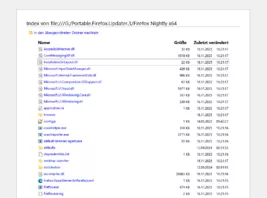
Bitte eine Erklärung, wenn ich die Link-Adresse(siehe Bild oben) zu meinem Installationsordner eingebe, so erscheint dieses Fenster, und nicht der Win-Explorer.